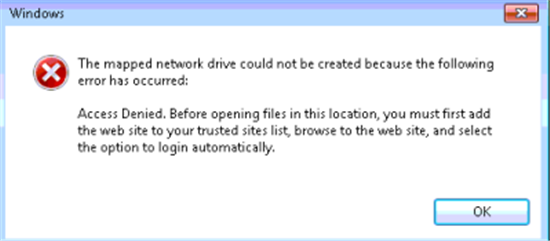
When you browse to a mapped network drive, you may receive an error message that resembles the following:
After you configure a mapped network drive to connect to SharePoint Online sites, you can perform the following actions by using Windows Explorer:
- Drag files into libraries
- Create folders
- Move and copy files
- Delete multiple files at one time
Note After you map a network drive to SharePoint Online, you must occasionally connect to the SharePoint Online site through Internet Explorer and select the option to Keep me signed-in. This prevents the session used by the mapped network drive from expiring. A mapped network drive that’s connected to SharePoint Online is only supported when these steps are performed within Internet Explorer.
Before you map a network drive, follow these steps:
- Sign in to the https://portal.office.com site by using your Office 365 work account credentials, and make sure that you click to select the Keep me signed in check box as seen in the following screen shot:
Note After you map a network drive to SharePoint Online, you must occasionally connect to the SharePoint Online site by using Internet Explorer and select the Keep me signed-in option. This prevents the session that's used by the mapped network drive from expiring. A mapped network drive that’s connected to SharePoint Online is only supported when these steps are performed within Internet Explorer.

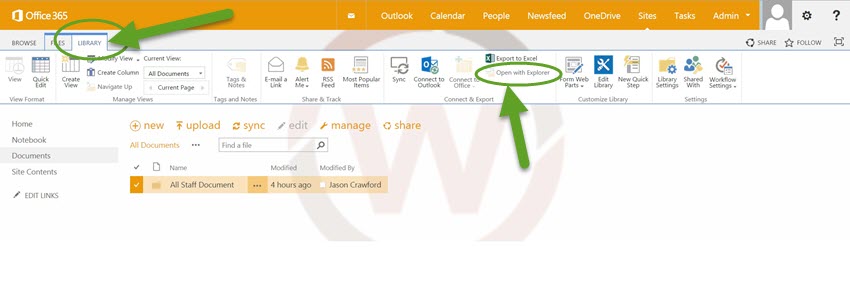
- From your Team Site.
- Under the Library Tools section in the Ribbon, click the Library tab.
- In the Actions group, click Open with Explorer.
see Microsoft article here:
http://support.microsoft.com/kb/2616712
0 Comments